Create an Organization
Organizations are used to group and manage related projects, team members, subscriptions, and billing settings.
Each organization provides an isolated workspace where you can collaborate with your team, create projects, manage resources, and monitor usage independently from other organizations.

Creating an Organization
- Navigate to the Organizations page.
- Click the New Organization button located in the upper-right corner of the page.
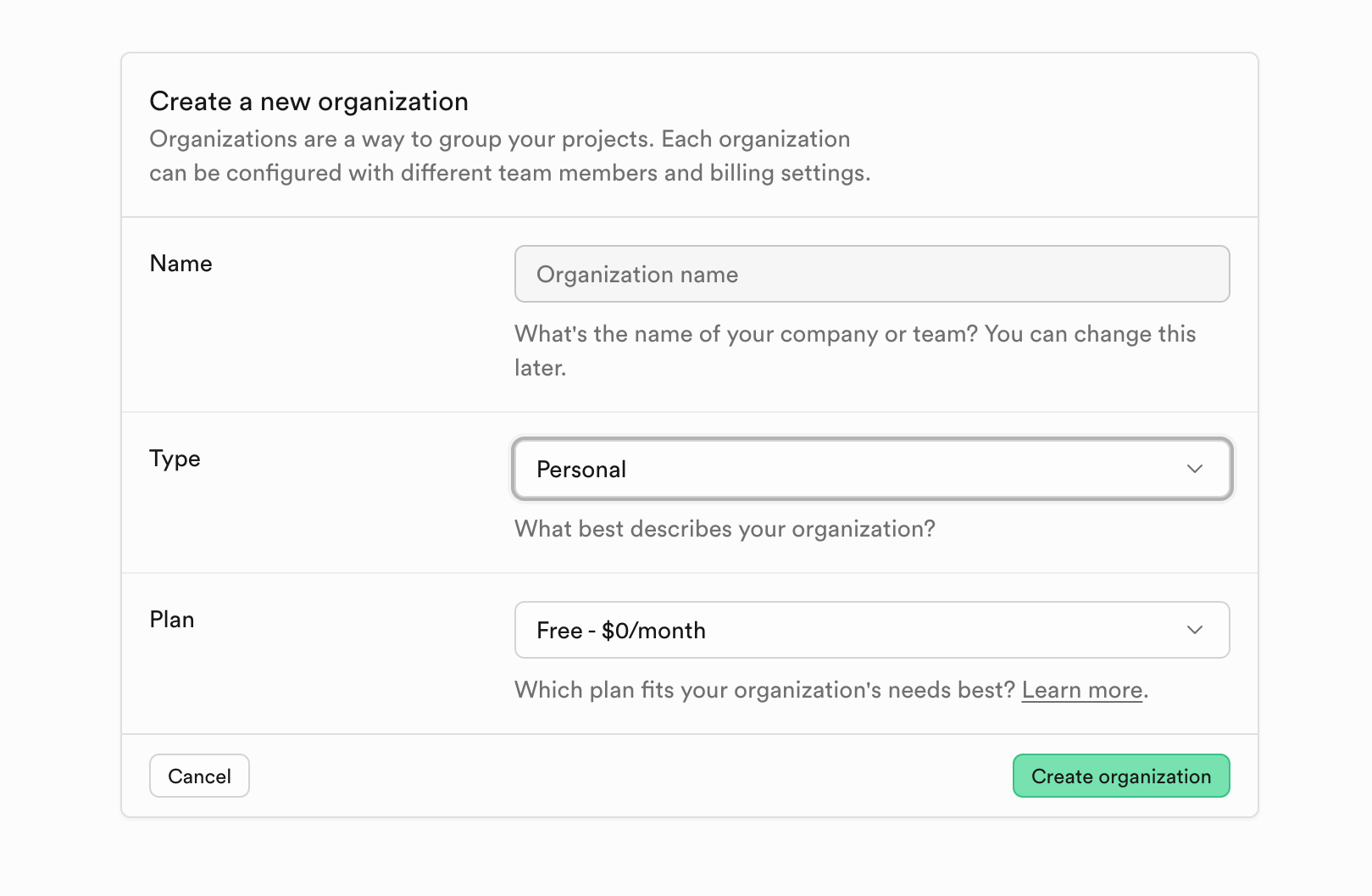
- Complete the required information in the organization setup form.
- Click Create Organization.
Once created, you will automatically become the Owner of the organization.
Organization Setup Form
Organization Name
Provide a descriptive name for your organization.
Examples:
- Acme Corporation
- Development Team
- Customer Success
- Production Environment
The organization name is displayed throughout the platform and helps team members identify the correct workspace.
Subscription Plan
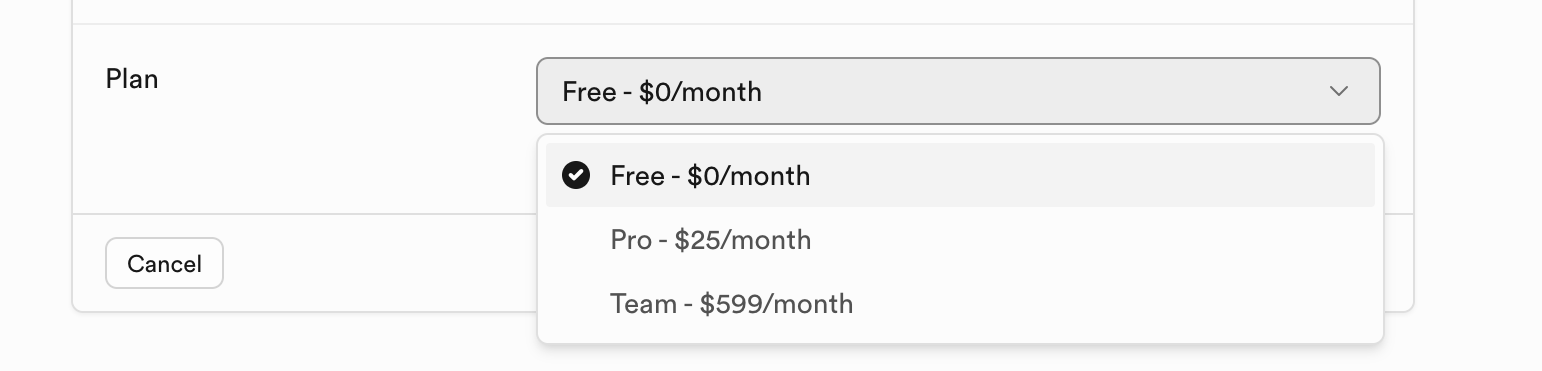
Select the subscription plan that best fits your organization's requirements.
The list of available plans is configured by platform administrators and may include options such as:
| Plan | Description |
|---|---|
| Pool | Ideal for evaluation, personal projects, and development environments. |
| Professional | Designed for growing businesses requiring higher limits and advanced features. |
| Enterprise | Provides enterprise-grade security, compliance, support, and scalability. |
Available plans and included features are determined by your platform administrator and may differ between deployments.
What Happens Next?
After the organization is created, Platform automatically provisions the organizational workspace and initializes the required resources.
You can then:
- Create projects
- Invite team members
- Configure billing settings
- Manage subscriptions
- Monitor resource usage
- Configure security settings
- Set up integrations
Managing Your Organization
After creation, organization owners can manage the workspace through the following sections:
Team
Invite and manage organization members.
- Add users
- Remove users
- Assign roles
- Manage access permissions
Projects
Create and manage projects within the organization.
Projects inherit organization-level governance and billing settings while maintaining isolated resources.
Usage
Monitor platform consumption across all projects, including:
- Compute usage
- Storage usage
- Database usage
- Network traffic
- Active users
Billing
Manage subscription plans, invoices, payment methods, and spending controls.
Organization Settings
Configure organization-wide settings such as:
- General information
- Security policies
- Single Sign-On (SSO)
- Compliance settings
- Audit logs
- Data privacy controls
Ownership and Permissions
The user who creates an organization is automatically assigned the Owner role.
Organization Owners can:
- Manage team members
- Create and delete projects
- Change subscription plans
- Configure billing settings
- Modify security policies
- Delete the organization
Additional users can be granted permissions based on roles defined within the platform.
Delete Organization
Deleting an organization permanently removes all associated projects, resources, and configuration data.
Before deleting an organization:
- Back up any required data
- Ensure projects are no longer needed
- Verify all team members are aware of the change
Organization deletion is irreversible.