Create a New Project
A project is a dedicated runtime environment within an organization. Each project includes its own isolated infrastructure, database instance, and API layer, allowing you to build and deploy applications independently.
When you create a project, Platform automatically provisions all required services, including a managed database and API endpoint, so you can start building immediately.
Overview
Each project includes:
- Dedicated compute instance
- Isolated database (PostgreSQL or supported engines)
- Environment configuration
- Optional GitHub integration for schema-driven deployments
Creating a Project
Follow these steps to create a new project:
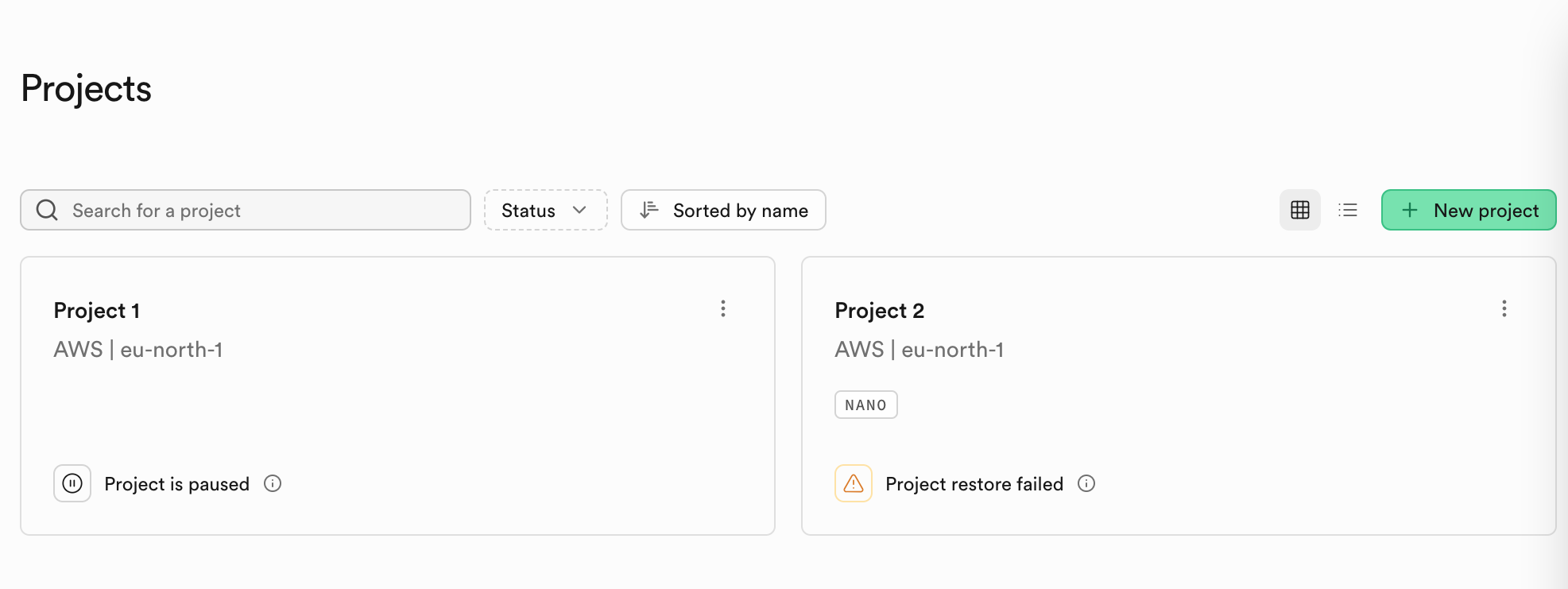
1. Navigate to Projects
Go to your organization dashboard and select Projects from the sidebar.

2. Click "Create Project"
In the top-right corner of the Projects page, click Create New Project.
This opens the project setup form.
Project Setup Form
Organization
Select the organization where the project will be created.
Example:
- My Org (Pooled Plan)
Projects inherit billing, usage limits, and governance rules from the selected organization.
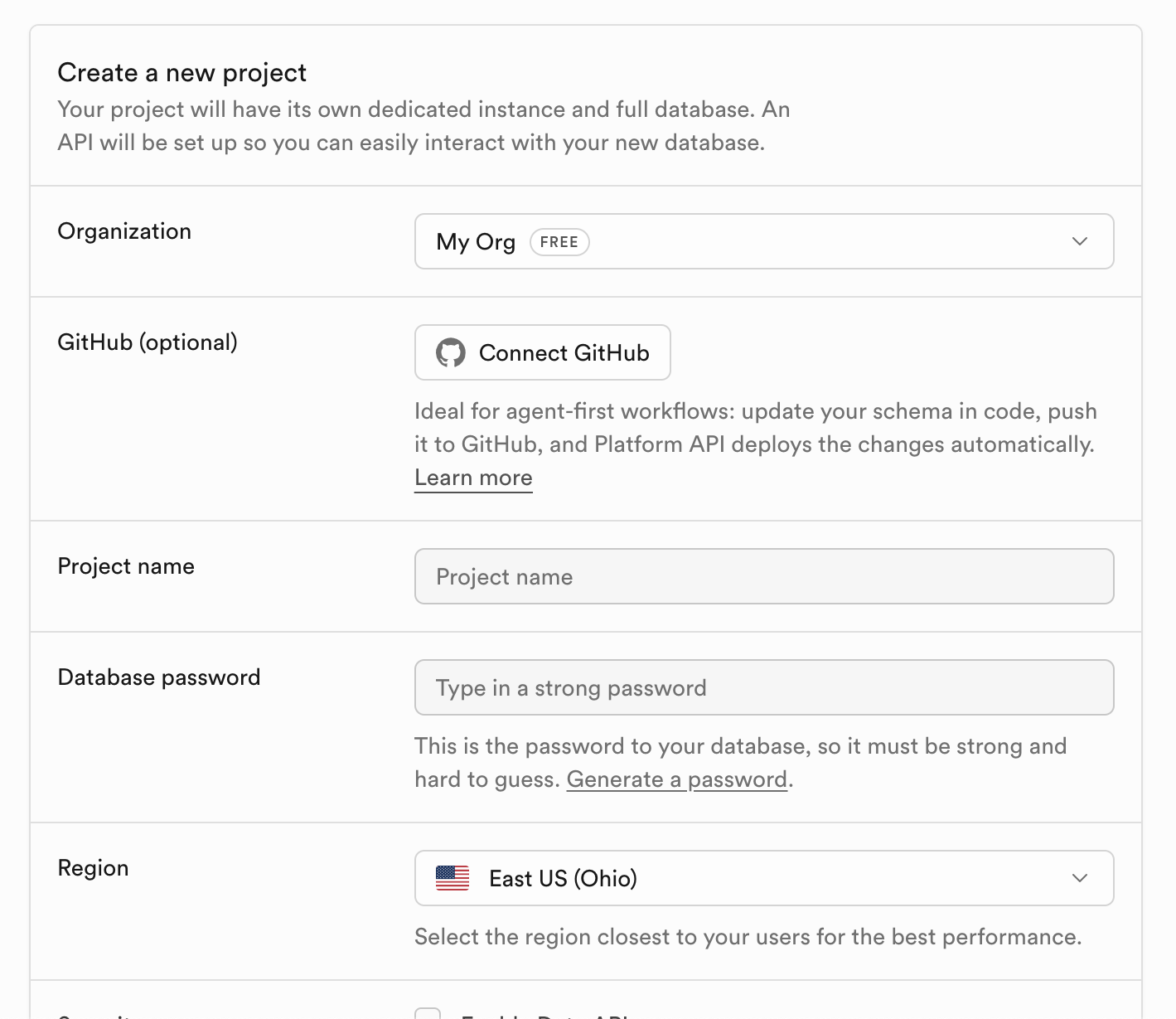
GitHub Integration (Optional)
Connect your GitHub account to enable Git-based workflows.
- Click Connect GitHub
- Authorize Platform access
- Select repositories for integration
GitHub integration enables:
- Schema versioning in code
- Automated deployments on push
- Agent-first development workflows
- Continuous schema synchronization
If not connected, you can still manage your project manually through the Platform UI or API.
Project Name
Enter a unique name for your project.
Examples:
- payments-api
- customer-portal
- analytics-service
This name is used to identify your project across the platform.
Database Password
Set a strong password for your database.
- Must be secure and hard to guess
- Used for direct database access
- Cannot be recovered after creation
You may use Generate Password to automatically create a secure value.
Region
Select the region where your project will be deployed.
Example:
- East US (Ohio) —
us-east-2 - West US (North California) —
us-west-1 - West US (Oregon) —
us-west-2 - East US (North Virginia) —
us-east-1 - East US (Ohio) —
us-east-2 - Canada (Central) —
ca-central-1 - West EU (Ireland) —
eu-west-1 - West Europe (London) —
eu-west-2 - West EU (Paris) —
eu-west-3 - Central EU (Frankfurt) —
eu-central-1 - Central Europe (Zurich) —
eu-central-2 - North EU (Stockholm) —
eu-north-1 - South Asia (Mumbai) —
ap-south-1 - Southeast Asia (Singapore) —
ap-southeast-1 - Northeast Asia (Tokyo) —
ap-northeast-1 - Northeast Asia (Seoul) —
ap-northeast-2 - Oceania (Sydney) —
ap-southeast-2 - South America (São Paulo) —
sa-east-1
Choose a region closest to your users to reduce latency and improve performance.
Advanced Configuration
Advanced settings define core infrastructure behavior and cannot be changed after project creation.
Database Type
Select the database engine for your project.
Supported options may include:
- PostgreSQL (recommended)
- MySQL
- MariaDB
- SQLite
- Microsoft SQL Server
- Oracle Database
- Amazon Aurora (cloud-managed MySQL/Postgres-compatible)
The database type is locked after project creation to ensure data integrity and infrastructure consistency.
Creating the Project
Once all required fields are completed:
- Review your configuration
- Click Create Project
- Wait for provisioning to complete
What Happens Next?
After creation, Platform automatically:
- Provisions a dedicated compute instance
- Sets up your database
- Generates an API endpoint
- Applies security and network policies
- Initializes monitoring and logging
- Configures optional GitHub workflows
You will then be redirected to your project dashboard.
After Setup
From your project dashboard, you can:
- Manage databases and schemas
- View API endpoints
- Configure authentication
- Set up storage and services
- Monitor usage and performance
- Invite team members
- Enable integrations
Notes
- Project configuration cannot be fully changed after creation (especially database type and region).
- Always verify your region and database password before proceeding.
- GitHub integration can be added later, but is recommended at setup for automated workflows.